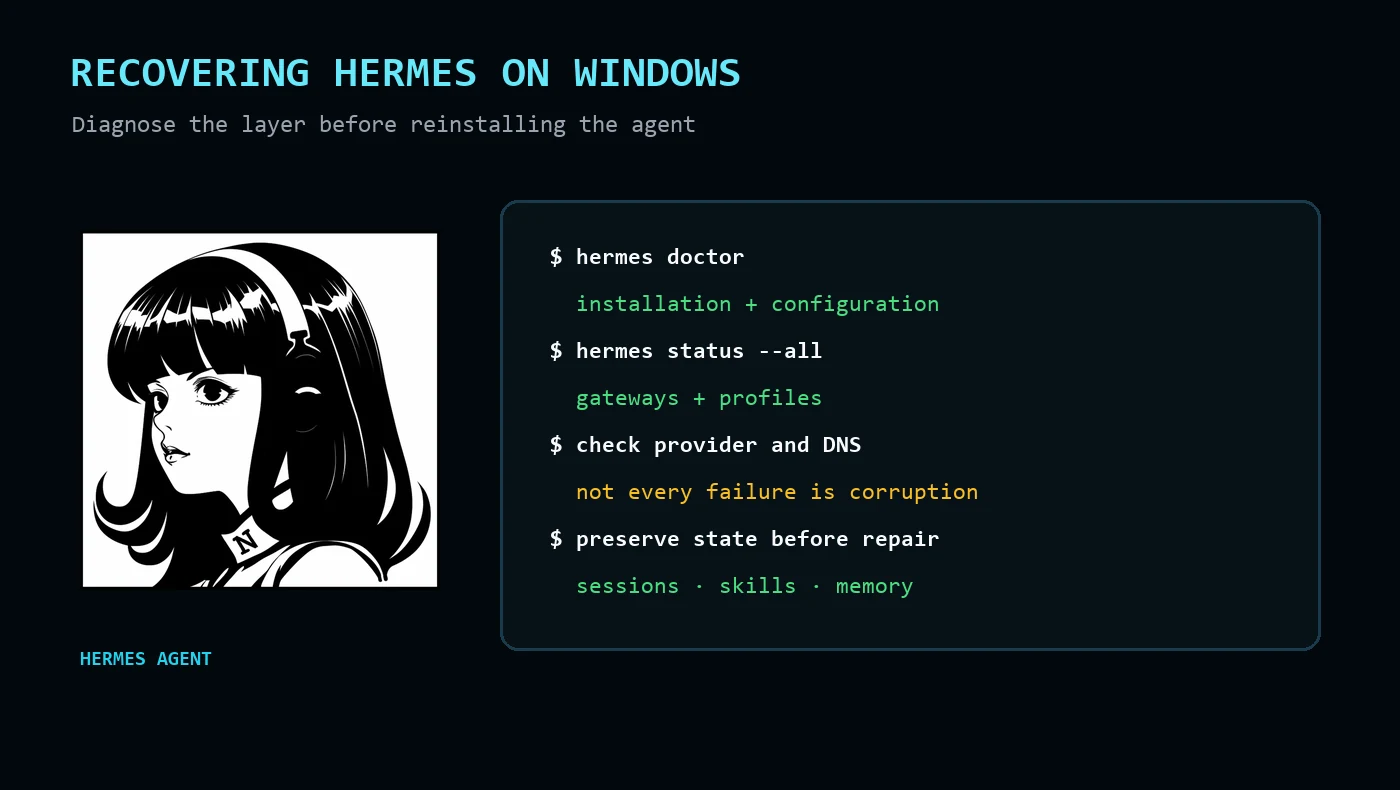
When Hermes Agent stops responding, the natural reaction is to assume the installation is broken and reach for the installer. That is usually the wrong first move.
I have spent a fair amount of time troubleshooting Hermes on Windows. What looked like a broken installation has turned out to be several very different problems: an AI provider outage, a DNS failure, a messaging gateway conflict, a locked executable after an update, or—occasionally—a genuinely damaged local installation.
The most useful lesson has been simple:
Diagnose the layer that failed before reinstalling anything.
A reinstall will not fix a provider outage. It may not fix a profile conflict. If performed carelessly, it can also make recovery harder by removing the configuration, sessions and skills that were still healthy.
Before you change anything
Hermes stores much more than the executable itself. Depending on your setup, its home directory can contain:
config.yaml— configuration;.env— credentials and local environment settings;auth.json— provider authentication state;state.dbandsessions/— conversation history and routing data;skills/— installed and locally developed skills;cron/— scheduled jobs;profiles/— isolated Hermes profiles;logs/— the evidence needed to understand the failure.
Do not begin by deleting that directory. If a reinstall becomes necessary, preserve the data first and use the non-destructive recovery path.
Never publish or paste the contents of .env, auth.json or other credential files into a support forum or AI conversation.
Step 1: Check whether Hermes itself still runs
Open a terminal and run:
hermes doctor
hermes status --all
For a deeper status check on current versions, use:
hermes status --all --deep
These checks help separate a damaged installation from a healthy installation whose model provider or gateway is failing.
Also record the installed version:
hermes --version
If these commands work, do not call the whole installation broken yet.
Step 2: Identify which part has failed
I divide Hermes failures into four broad groups.
1. The model or provider is unavailable
Typical symptoms include:
- HTTP
429,503or520errors; - a response stream that begins and then stalls;
- Hermes unexpectedly using a fallback model;
- chat failing while local commands and gateways remain healthy.
This is usually an upstream problem, not installation corruption. Check the provider status, authentication and configured fallback chain before reinstalling Hermes.
Useful checks include:
hermes auth list
hermes config check
hermes model
If a fallback model appears unexpectedly, read the logs. In my setup, apparent “model switching” was Hermes doing exactly what it was configured to do after the primary and first fallback providers failed.
2. The network or DNS has failed
Typical symptoms include:
getaddrinfo failed;- Telegram reconnect loops;
- email IMAP or SMTP timeouts;
- several unrelated online services failing together.
When chat, Telegram and email all fail at once, suspect the network before Hermes. Test DNS resolution and ordinary HTTPS access. If the connection recovers and the gateway reconnects, no reinstall is required.
3. A messaging gateway or profile is conflicting
Hermes profiles are useful because they isolate configuration, sessions and memory. They can also collide if two profiles attempt to operate the same Telegram bot or other exclusive connection.
Check every running profile and gateway:
hermes profile list
hermes status --all
hermes gateway status
A second gateway holding the same bot token can make the correct gateway appear broken. Stop the conflicting process, confirm which profile owns the platform and restart only the intended gateway.
4. The local installation or update really is broken
The clearest warning signs are:
- the CLI no longer starts;
- imports or packaged backend components are missing;
- an update stopped halfway through;
- the desktop interface and backend report incompatible states;
- Windows reports that
hermes.exeis in use when repair tries to replace it.
This is the point where repair or reinstall becomes reasonable—but only after preserving the Hermes data directory.
Step 3: Read the logs before guessing
Logs turn “Hermes is broken” into a specific diagnosis.
The exact files vary by installation and version, but on Windows I check the Hermes logs directory for files such as:
desktop.log;errors.log;gateway.log;update.log;gui.log.
Use the configured path rather than guessing:
hermes config path
hermes config env-path
Then inspect the nearby Hermes home and logs directory. Search around the time the failure began. One precise error is more valuable than hundreds of lines from after repeated restart attempts.
Step 4: If the failure followed an update, reboot
This sounds unsophisticated, but it has been one of the most important Windows-specific recovery steps.
A running Hermes process can keep hermes.exe locked. A self-repair or update may then replace some files but not others, leaving the desktop application and backend out of sync.
Before repeatedly running installers or manually deleting files:
- close Hermes Desktop;
- stop Hermes gateways and background processes;
- reboot Windows;
- run
hermes doctorandhermes status --allagain; - only then retry the supported update or repair command.
A reboot clears file locks and stale processes. It also gives you a cleaner test than stacking one repair attempt on top of another.
Step 5: Repair configuration separately from the program
A working executable can still have an old or incomplete configuration.
Run:
hermes config check
hermes config migrate
Use the setup tools when a provider or gateway needs to be reconfigured:
hermes setup
hermes model
hermes gateway setup
Do not copy a configuration file from another computer or profile without checking paths, providers and platform ownership. On Windows, also watch for a UTF-8 byte-order mark in manually edited YAML files; it can produce confusing first-run or model-configuration errors.
Step 6: Repair the gateway only if the gateway is the problem
If desktop chat works but Telegram, email or another platform does not, focus on the gateway:
hermes gateway status
hermes gateway restart
If the gateway was installed as a background service or scheduled task, confirm that the Windows task still exists and that only the intended profile starts it.
Do not create multiple restart mechanisms without understanding them. A scheduled task, startup shortcut and watchdog can all launch the same gateway and create duplicate-process or token-ownership problems.
Step 7: Reinstall only after preserving the data
If diagnostics show actual local corruption:
- stop Hermes and its gateways;
- back up the Hermes home directory;
- verify the backup contains configuration, sessions, skills, cron jobs and profiles;
- use the current official Hermes installation or repair instructions;
- restore only the required data;
- run
hermes doctor,hermes config checkandhermes status --all; - start one gateway and test one platform at a time.
Avoid a full “wipe everything” uninstall unless you deliberately want to remove your sessions, memory and configuration.
Windows-specific traps I have encountered
Git Bash is not PowerShell
My Hermes terminal backend on Windows uses Git Bash/MSYS. PowerShell commands copied from a Windows guide will not necessarily work there. Conversely, Unix shell snippets may not work in PowerShell.
Know which shell is running before treating a command failure as a Hermes failure.
File locks can leave an update half-applied
Windows may keep the executable locked after the visible window closes. Reboot before forcing deletion.
Duplicate skill folders can create ambiguous skill names
A backup folder placed inside the active skills tree may still be discovered as a skill. Keep backups outside active skill-discovery directories.
Browser tooling can fail independently
A missing browser dependency or browser automation connection does not mean the core agent is corrupt. Test chat, files, terminal and gateway functions separately.
Profiles need clear ownership
Profiles should have isolated purposes, credentials and platform routes. If two profiles share one Telegram bot token, only one can reliably own it.
My short recovery checklist
- Run
hermes doctor. - Run
hermes status --all. - Decide whether the failure is the model, network, gateway/profile or local installation.
- Read logs before changing configuration.
- Reboot if the problem began during an update or an executable is locked.
- Preserve the Hermes home directory.
- Repair only the failed layer.
- Reinstall only when local corruption is supported by evidence.
- Restore one component and test one platform at a time.
- Write down the root cause so the next recovery is faster.
Final thought
The phrase “broken Hermes install” covers too many different failures. The fastest repair is often not a reinstall; it is correctly identifying whether Hermes, Windows, the network, a provider or a second gateway is the component that actually failed.
Official documentation and commands change over time. Before following this guide, compare it with the current Hermes Agent documentation at hermes-agent.nousresearch.com/docs.